

Beta: The Quantum Engineering interface is currently in beta.
Overview
The Quantum Engineering interface is an agentic experience in the Classiq platform. It carries a whole task from goal to result. Describe what you want to achieve, and the agent plans the work, writes a Qmod model, synthesizes it into a quantum program, executes it, and analyzes the results. Each step produces an artifact you can open, inspect and continue from. To run the same workflow from your own agentic coding platform, such as Claude Code or Cursor, use the Quantum Engineer plugin. To get AI help while you write code in Classiq Studio, use the AI agent in Studio.Accessing the Interface
The Quantum Engineering interface is available only to users with an active Classiq subscription.

The Quantum Engineering interface banner on the home page.
- Prompt box: Describe a circuit, algorithm or problem in the center of the screen. Click the + icon to upload a research paper you want to implement, a circuit image or diagram, or a code file such as a Qiskit circuit or a model.
- Threads: Click New Thread in the left panel to start a separate conversation.
- More from Classiq: Open Classiq Studio, the Library or the User Guide, or download the AI Plugin, which installs the Quantum Engineer plugin in your agentic coding platform.
- Legacy platform: Click Switch to the legacy platform experience at the top right to go back to the non-agentic Classiq platform at any time.
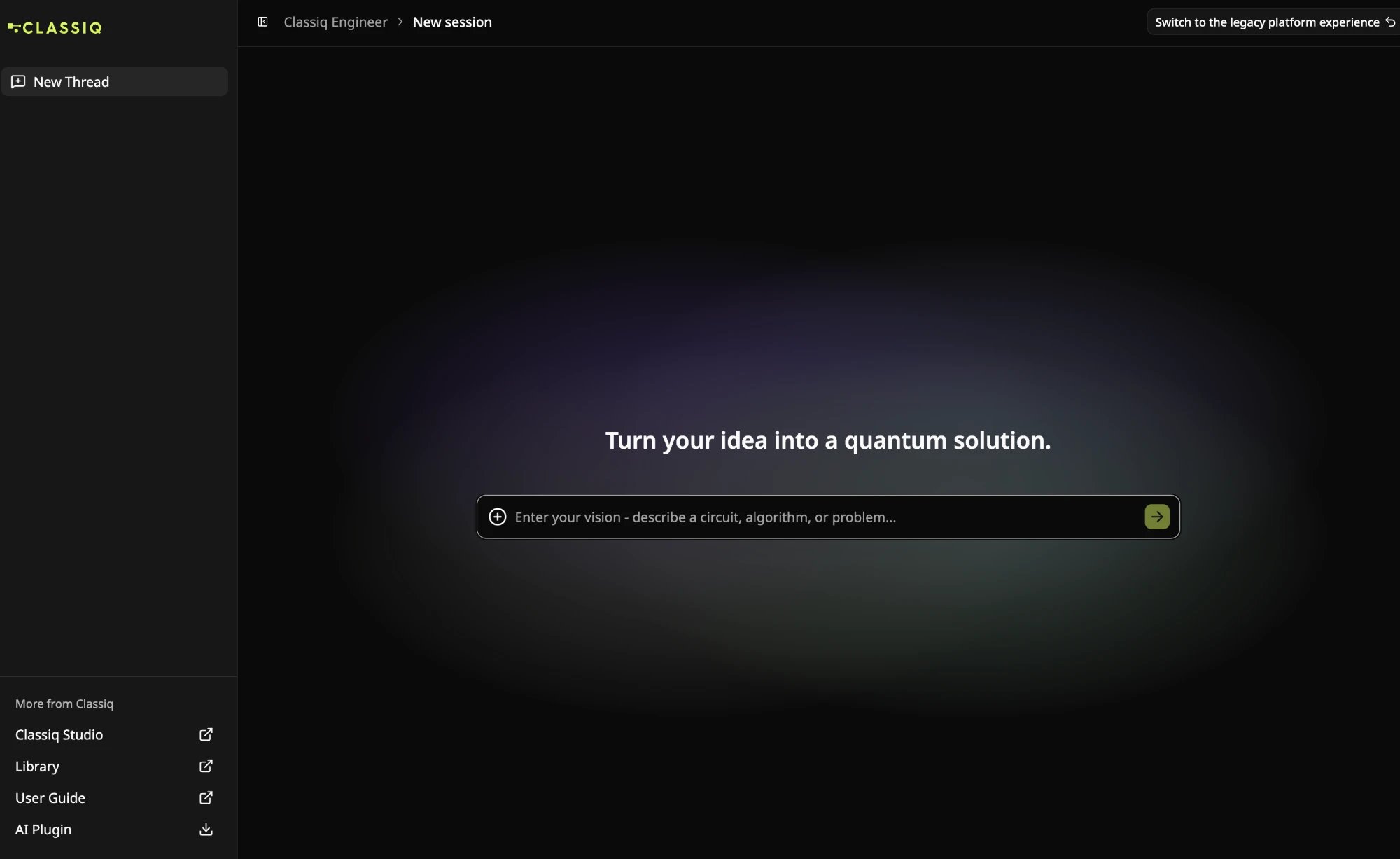
A new session in the Quantum Engineering interface.
Thread Context
The agent keeps the context of the current thread so each step builds on the last:- Attachments: Papers, images and files you upload with +, such as a research paper, a circuit diagram, a Qiskit circuit or Qmod, stay available for the rest of the thread.
- Task state: The synthesized program, execution results and analysis carry through the thread. You can say “now run it on a simulator” without restating the model.
- Starting a new thread: Click New Thread to start fresh with no prior context.
Running a Task
- Type your goal in the prompt box, for example “Implement Grover’s search”, or click + to upload a paper, circuit image or code file to start from.
- Click the arrow button to send. The agent replies with a plan, such as “model the circuit, synthesize it, then execute it on the simulator”, and starts working through it.
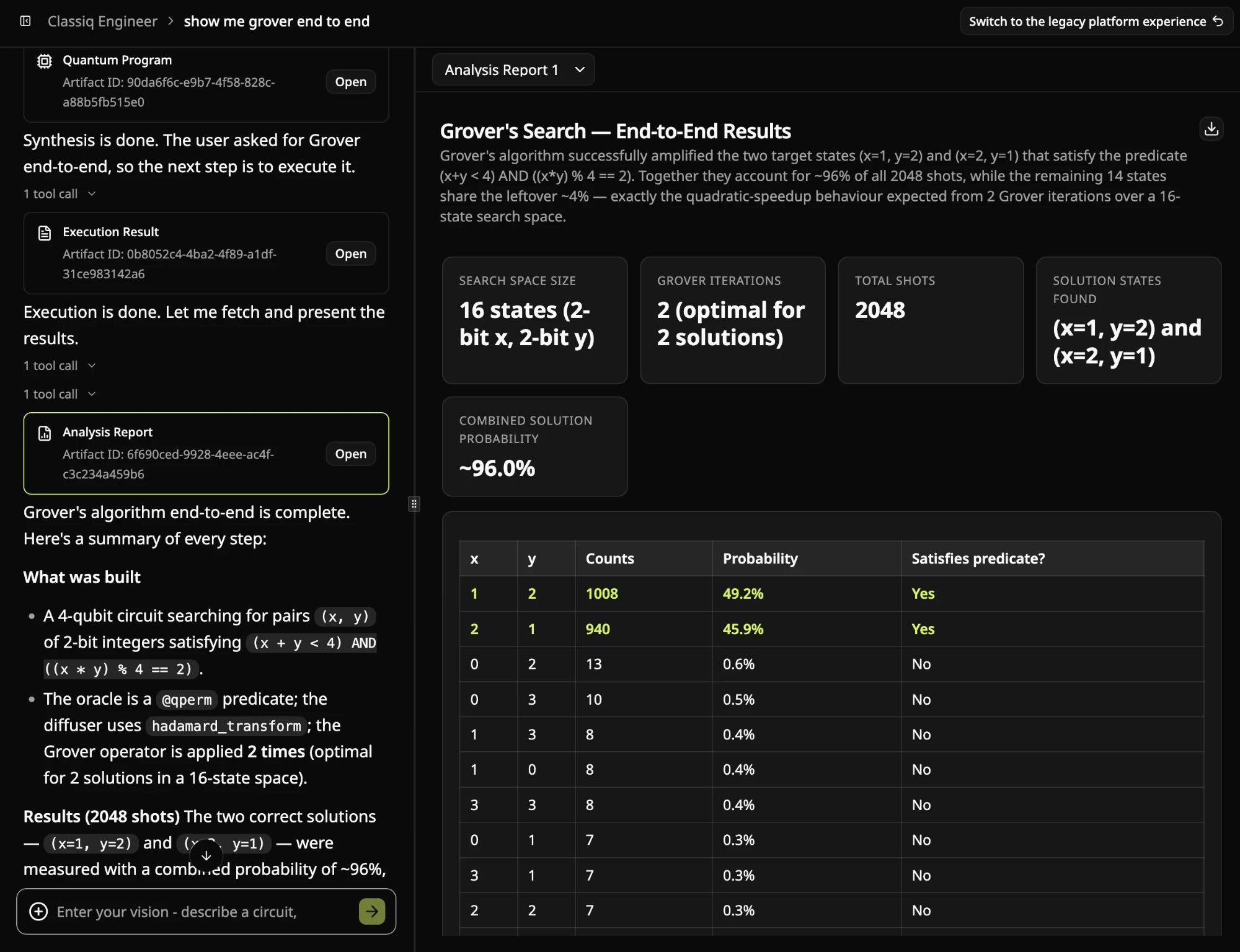
- As each step finishes, the agent explains what it did and adds an artifact card to the thread: Code, Quantum Program, Execution Result and Analysis Report. Expand tool call under a message to see exactly what the agent ran.
- Click Open on any artifact card to view it in the panel on the right. Ask follow-up questions in the same thread to change the model, rerun a step, or explain a result.
Artifacts
Each artifact opens in the right panel with a button that takes it to the next step. You can click the button or ask for the same step in the chat. Use the dropdown at the top of the panel, such as Code 1, to switch between versions.- Code: The generated Qmod model in Python. Click Synthesize to build the quantum program.
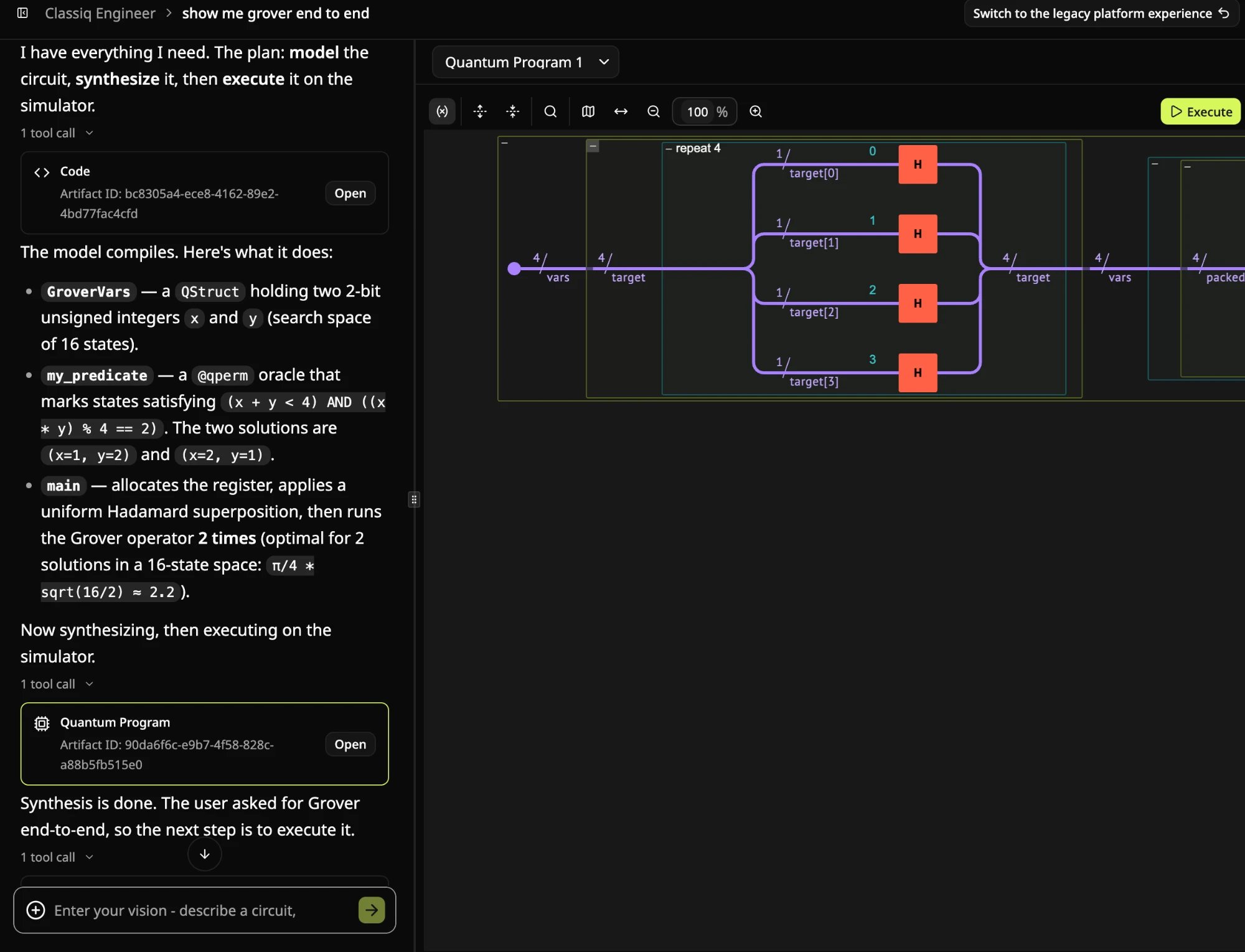
- Quantum Program: The synthesized circuit in the interactive visualizer. Click Execute to run it.
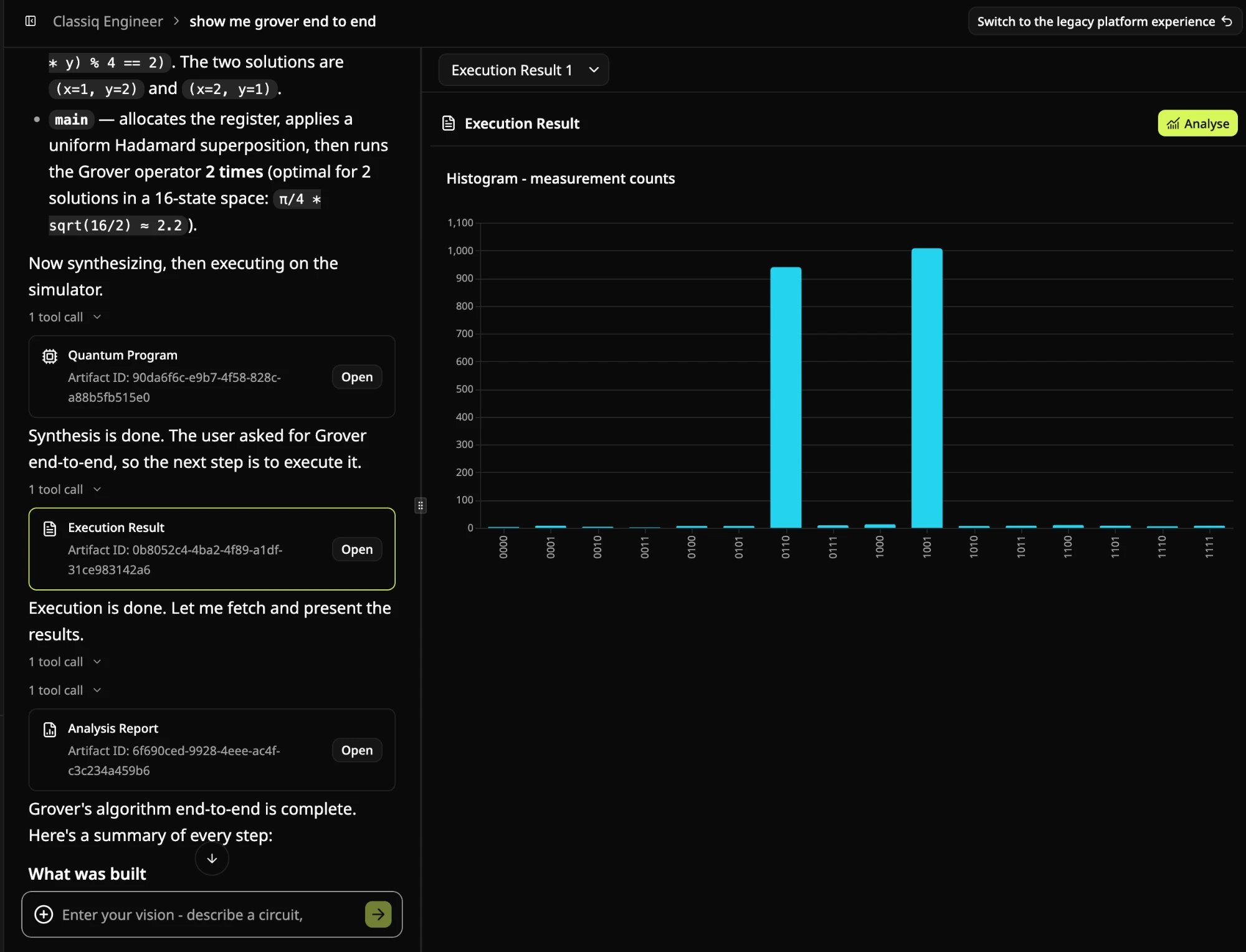
- Execution Result: A histogram of measurement counts. Click Analyse to generate a report.
- Analysis Report: A summary of the run with key figures and a per-state table of counts and probabilities. Click the download icon to save it.
- Code
- Quantum Program
- Execution Result
- Analysis Report
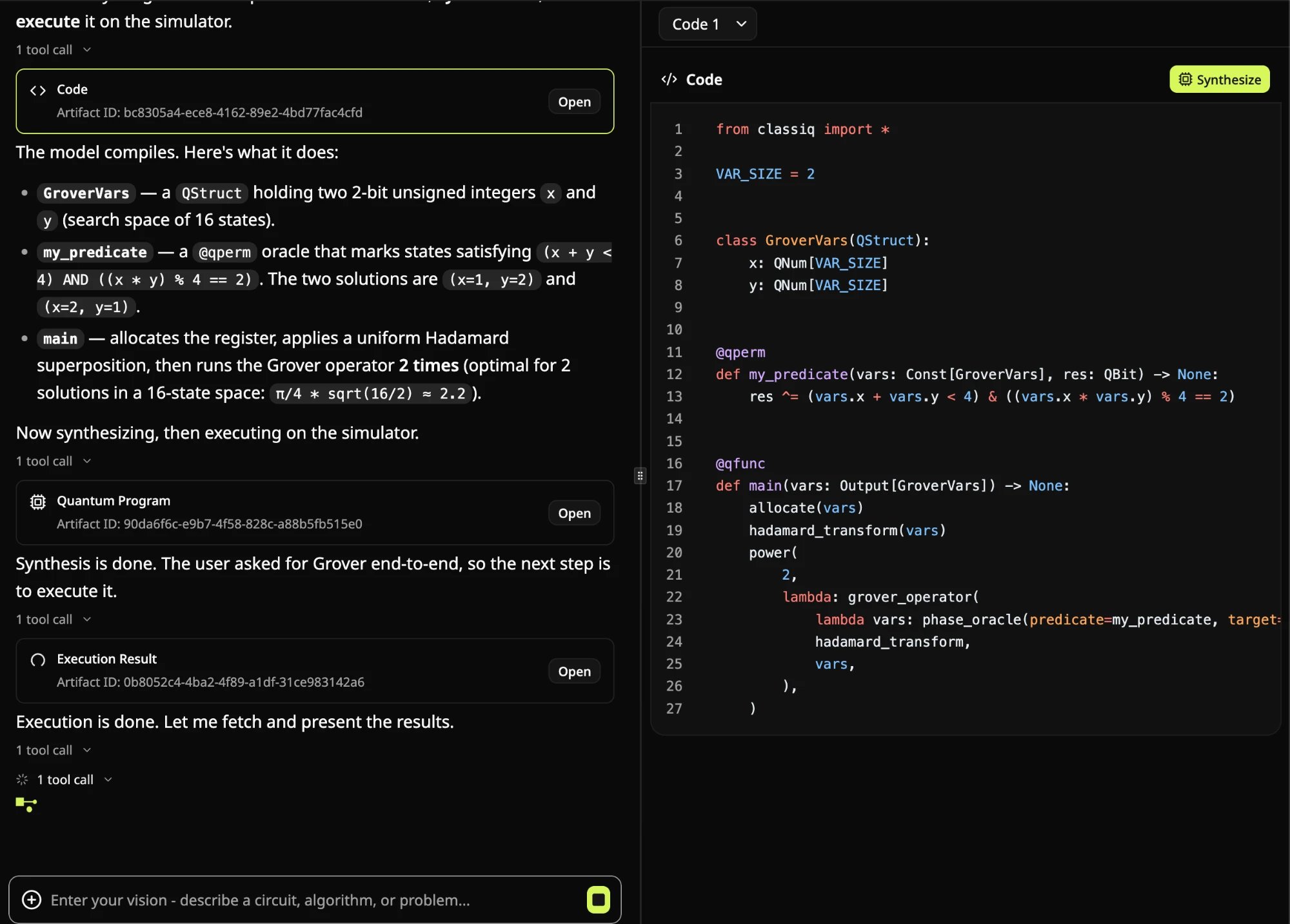
The generated model, explained in the thread and open in the Code panel.
Writing Prompts
The agent does best with a clear goal and room to choose the details, refined over follow-up messages.Examples
These prompts show how far the agent takes a task from a single message:- “Implement Grover’s search”: models a Grover search, synthesizes it, runs it on the simulator, and produces an analysis report.
- “Build a QAOA ansatz for MaxCut on a 6-node ring and run it on the simulator”: generates the ansatz and runs the optimization.
- “Implement the algorithm in this paper”, with a paper uploaded: reads the paper and generates a model of the algorithm it describes.
- “Implement quantum phase estimation for a 3-qubit unitary”: generates the model and synthesizes the circuit.
- “Why did you choose 2 Grover iterations?”
- “Explain what this circuit does”
- “Rerun it with 4,096 shots”
Best Practices
Capabilities
With the Quantum Engineering interface, you can:- Go from a plain-language goal to code, circuit, results and a report in one thread
- Generate Qmod models from descriptions, files or circuit images
- Synthesize, execute and analyze directly from the artifact panel
- Follow every step the agent takes, including its reasoning and tool calls
- Refine any step with follow-up messages in the same thread
- Download analysis reports to share results
Limitations
The interface is in beta, so treat the agent’s output as a draft to review:- Not every task will succeed. Large or novel problems may produce incomplete or incorrect output.
- Results are not guaranteed to be correct. Review the generated code and check results against known cases where you can.
See Also
- AI with Classiq: an overview of the AI options in Classiq.
- Quantum Engineer plugin: the same workflow in Claude Code, Cursor, Codex or Copilot.
- Visualization of quantum programs: how to read the circuit in the Quantum Program artifact.