

AI-assisted setup
The fastest way to set up Classiq is to copy the setup prompt into your AI coding assistant. Use this prompt if you want your assistant to install the SDK, check your Python environment, authenticate your account, and verify that Classiq is ready to use.Install and authenticate Classiq
Manual Python SDK Installation
Once you are granted platform access, install the SDK package usingpip:
The SDK is currently supported for Python versions
3.8 to 3.12.pip install options
pip install options
Run
Make sure you are within the appropriate Python environment.
pip install -U classiq in your command line, or use !pip install -U classiq from your Python IDE.Make sure you are within the appropriate Python environment.
Authentication
Authenticate the device with your Classiq account. In Python, run these lines: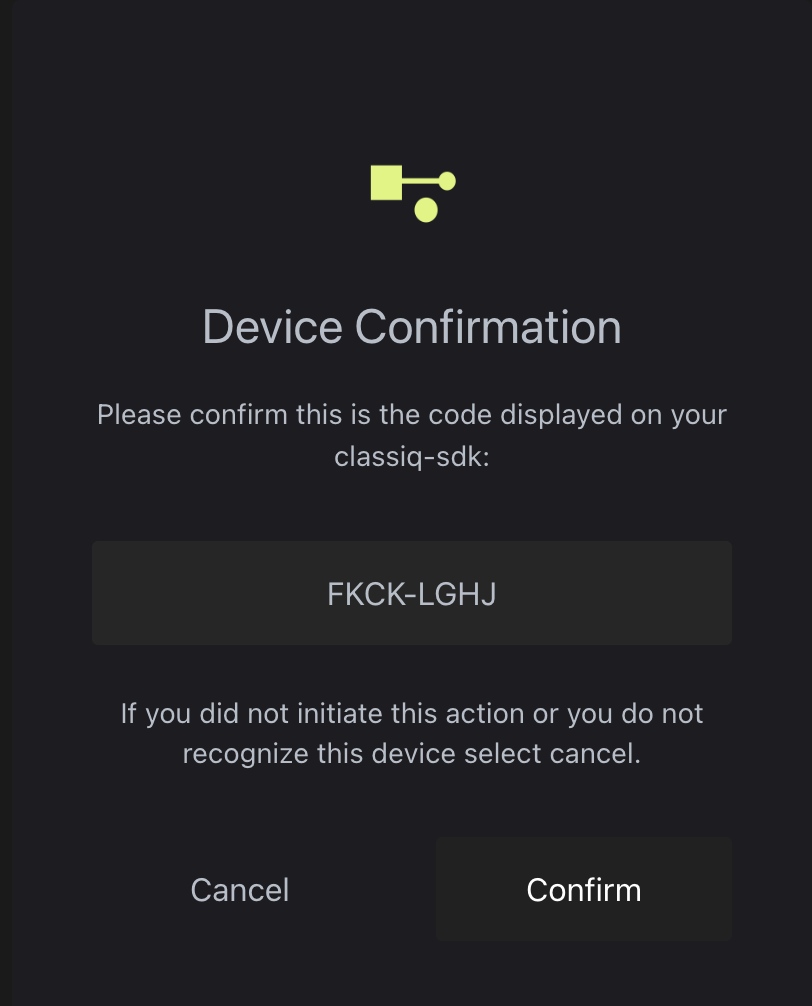
Platform Version Updates
Every few weeks a new version of the platform launches. The web-based IDE at platform.classiq.io automatically updates. Update the Python SDK package manually with this command:DESIRED_VERSION with the number of your desired version, e.g. 0.40. You can check what version of Classiq is installed with:
0.41, only versions 0.41, 0.40, and 0.39 are supported.
*Once version 0.52 is released - execution of quantum programs with older SDK versions might result in errors or unexpected behavior. To ensure proper execution, upgrade your SDK to the latest version.
Python SDK Installation Troubleshooting
SDK Configuration for Organizations
SDK Configuration for Organizations
Check your user profile page on the platform (when logged in, click your avatar
on the top-right, then “Profile Settings”). Look for the “SDK Configuration”
section. If it’s not there, simply ignore this step.Otherwise, download the file from the profile and copy it to:The last command prints
- Mac & Linux:
~/.config/classiq/config.env - Windows:
%APPDATA%\classiq\config.env
classiq folder if it does not exist yet, then copy the file, replacing the source path with wherever you downloaded it:True when the file is in place.Device is Not Authenticated
Device is Not Authenticated
Try to use the following command in Python:
Authentication on Headless LINUX Systems
Authentication on Headless LINUX Systems
The authentication procedure on headless Linux systems stores the tokens locally in a credentials file. While you must still run the authentication once, it can be done on another system with a browser.
Confidential Information Pop Up on Apple computers
Confidential Information Pop Up on Apple computers
On some Apple computers, the following might pop up: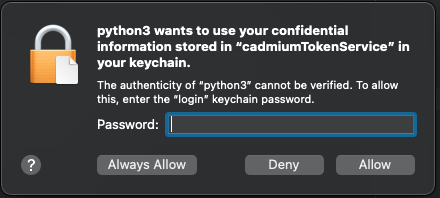 Make sure to type your device password and click
Always Allow twice.CredWrite Error 1783 on Windows
CredWrite Error 1783 on Windows
If authentication fails with
error: (1783, 'CredWrite', 'The stub received bad data.'), Windows Credential Manager could not store your credentials. Follow the workaround in SDK Authentication troubleshooting.