> ## Documentation Index
> Fetch the complete documentation index at: https://docs.classiq.io/llms.txt
> Use this file to discover all available pages before exploring further.
# SDK Authentication
The Classiq Python SDK authenticates your device with your Classiq account through an interactive, browser-based confirmation. For unattended, server-to-server contexts where no person can sign in, use the [Client Credentials (M2M) flow](/user-guide/authentication/m2m-authentication) instead.
## Authenticating your device
Make sure the SDK is installed before authenticating; see the [Python SDK installation guide](/getting-started/sdk_installation).
In Python, run:
[comment]: DO_NOT_TEST
```python theme={null}
import classiq
classiq.authenticate()
```
A confirmation window opens in your web browser. Confirm the authentication:
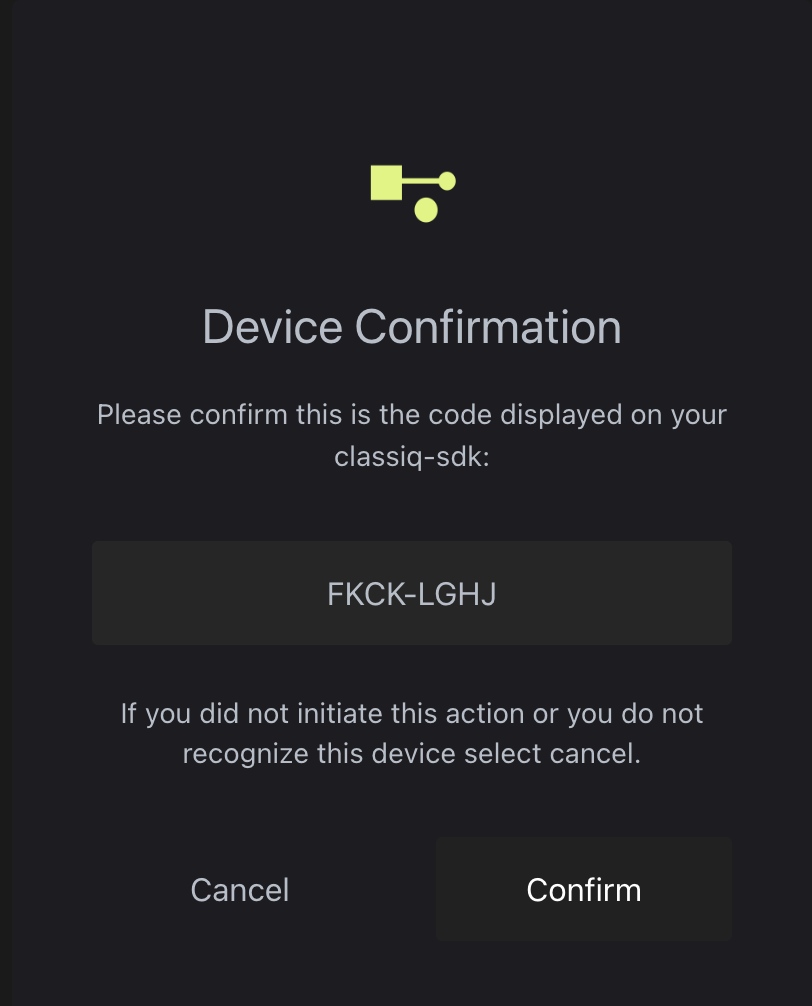 Once confirmed, you are ready to use Classiq. The credentials are cached locally and refreshed automatically, so you only need to re-authenticate if they are missing, expired, or revoked.
## Re-authenticating
To replace cached credentials, for example after they expire or when switching accounts, overwrite them:
[comment]: DO_NOT_TEST
```python theme={null}
import classiq
classiq.authenticate(overwrite=True)
```
## Troubleshooting
Overwrite the cached credentials and authenticate again, as described in [Re-authenticating](#re-authenticating).
This error means your authentication credentials were denied. Overwrite them as described in [Re-authenticating](#re-authenticating).
The authentication procedure on headless Linux systems stores the tokens locally in a credentials file. You must still run the authentication once, but it can be done on another system that has a browser, then the credentials file copied over.
On some Apple computers, a system pop-up may appear during authentication:
Once confirmed, you are ready to use Classiq. The credentials are cached locally and refreshed automatically, so you only need to re-authenticate if they are missing, expired, or revoked.
## Re-authenticating
To replace cached credentials, for example after they expire or when switching accounts, overwrite them:
[comment]: DO_NOT_TEST
```python theme={null}
import classiq
classiq.authenticate(overwrite=True)
```
## Troubleshooting
Overwrite the cached credentials and authenticate again, as described in [Re-authenticating](#re-authenticating).
This error means your authentication credentials were denied. Overwrite them as described in [Re-authenticating](#re-authenticating).
The authentication procedure on headless Linux systems stores the tokens locally in a credentials file. You must still run the authentication once, but it can be done on another system that has a browser, then the credentials file copied over.
On some Apple computers, a system pop-up may appear during authentication:
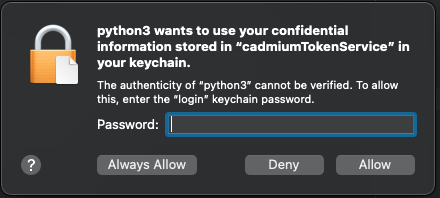 Type your device password and click **Always Allow** twice.
If the problem persists, ask in the [community Slack](https://short.classiq.io/join-slack).
Type your device password and click **Always Allow** twice.
If the problem persists, ask in the [community Slack](https://short.classiq.io/join-slack).