> ## Documentation Index
> Fetch the complete documentation index at: https://docs.classiq.io/llms.txt
> Use this file to discover all available pages before exploring further.
# Classiq Assistant: Getting Started
**Beta:** The Classiq Assistant is currently in beta.
## Overview
The Classiq Assistant is an AI assistant built into the [Classiq Platform](https://platform.classiq.io/). It lets you generate a quantum program from a natural language description or an image — without learning a new programming language. Describe the quantum problem you want to solve, and the assistant generates a qmod-native model, synthesizes it into a quantum program, and opens it in the Quantum Program page. You can also ask the assistant questions about quantum computing concepts and have it explain the programs it generates.
## Accessing the Assistant
The Classiq Assistant is available only to users with an active Classiq subscription.
The assistant is available in two places:
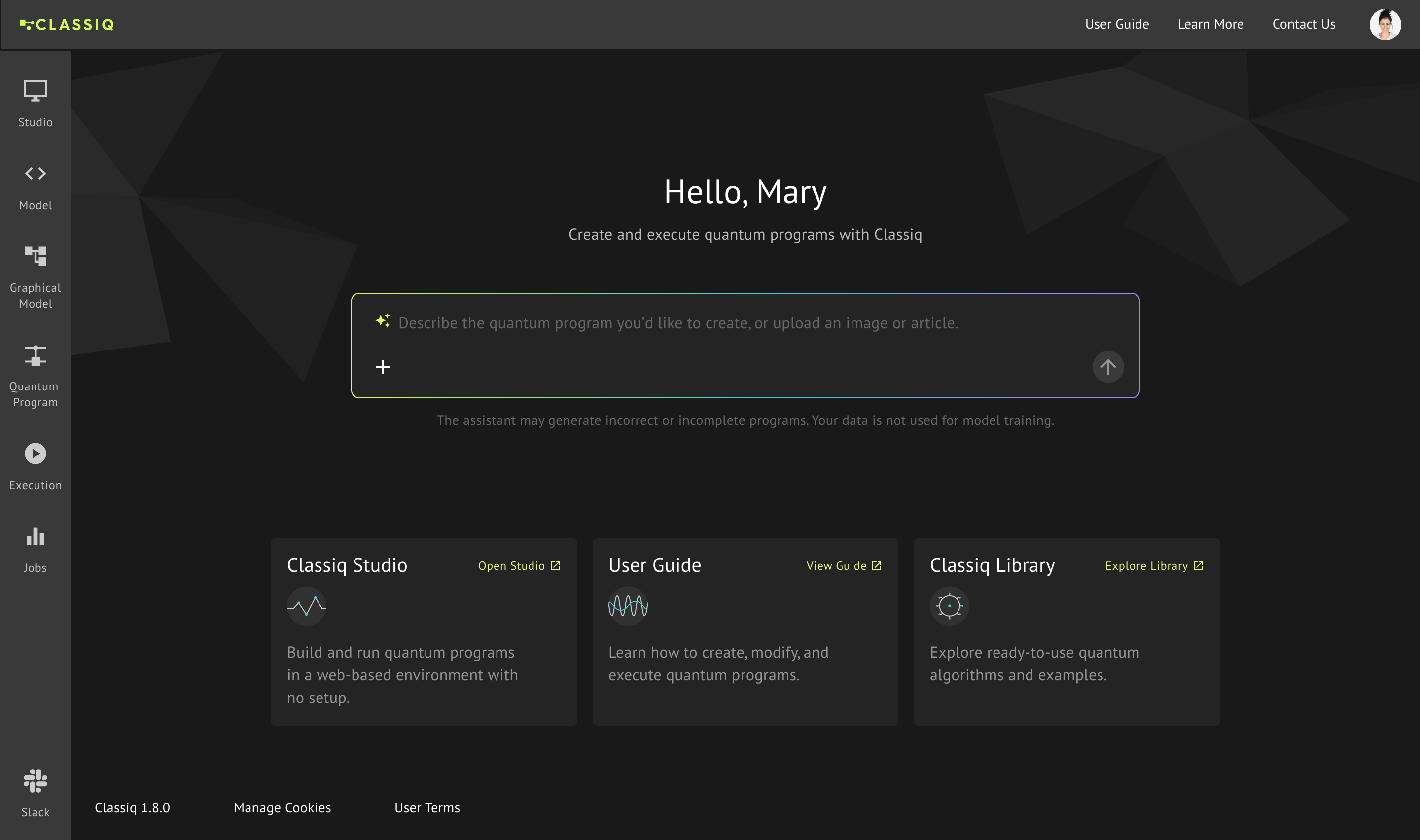
* **Home page:** Type your request directly in the input box at the center of the home page.
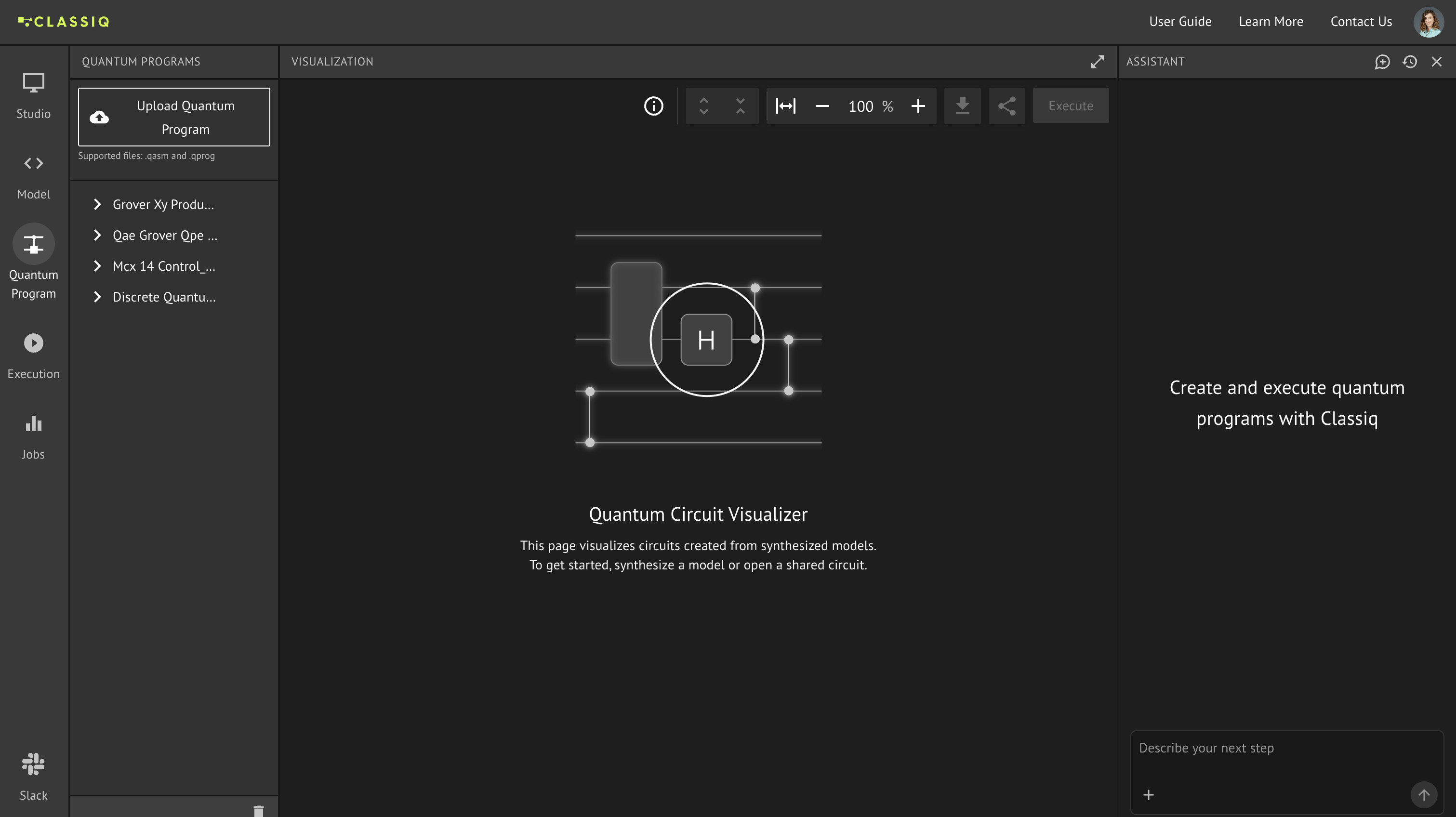
 * **Quantum Program page:** Open the assistant panel from any circuit page to keep refining your program or start a new request. The panel travels with you, so you can move between generating, refining, and asking questions without losing your place.
 ### Conversation context
The assistant keeps the context of your current work so its answers stay relevant:
* **Referenced circuit:** When you have a circuit open, it is attached to the conversation as a chip, so the assistant knows which program you are asking about. Remove the chip to drop that context, or start a new conversation to ask about something else.
* **Generated model:** Each program the assistant generates is available on the Model page as a new model. This model belongs to the current conversation context only — it is not saved permanently and disappears once you move on, so save it if you want to keep it.
* **Starting a new conversation:** Use the **New chat** button in the assistant panel to start fresh, or return to the home page and enter a new request there.
## Generating a Quantum Program
1. Type a description of the quantum program you want to build, or click the **+** icon to upload an image of a circuit or diagram.
2. Click **Send**. The assistant generates a qmod-native model and synthesizes it into a quantum program.
3. The Quantum Program page opens automatically with the result. From here you can keep chatting with the assistant — ask it to explain the circuit, predict the expected results, or refine the model.
Synthesis occasionally fails on the first attempt, and an error message may appear. When this happens, the assistant automatically retries, so the quantum program can take a little longer to load. Wait for it to finish before starting over.
4. To run the program, click **Execute**. This takes you to the Execution page, where you select a backend and run the program.
The assistant runs one request at a time and cannot process multiple chats concurrently. Wait for the current generation to finish before sending a new request or starting another chat.
### Conversation context
The assistant keeps the context of your current work so its answers stay relevant:
* **Referenced circuit:** When you have a circuit open, it is attached to the conversation as a chip, so the assistant knows which program you are asking about. Remove the chip to drop that context, or start a new conversation to ask about something else.
* **Generated model:** Each program the assistant generates is available on the Model page as a new model. This model belongs to the current conversation context only — it is not saved permanently and disappears once you move on, so save it if you want to keep it.
* **Starting a new conversation:** Use the **New chat** button in the assistant panel to start fresh, or return to the home page and enter a new request there.
## Generating a Quantum Program
1. Type a description of the quantum program you want to build, or click the **+** icon to upload an image of a circuit or diagram.
2. Click **Send**. The assistant generates a qmod-native model and synthesizes it into a quantum program.
3. The Quantum Program page opens automatically with the result. From here you can keep chatting with the assistant — ask it to explain the circuit, predict the expected results, or refine the model.
Synthesis occasionally fails on the first attempt, and an error message may appear. When this happens, the assistant automatically retries, so the quantum program can take a little longer to load. Wait for it to finish before starting over.
4. To run the program, click **Execute**. This takes you to the Execution page, where you select a backend and run the program.
The assistant runs one request at a time and cannot process multiple chats concurrently. Wait for the current generation to finish before sending a new request or starting another chat.
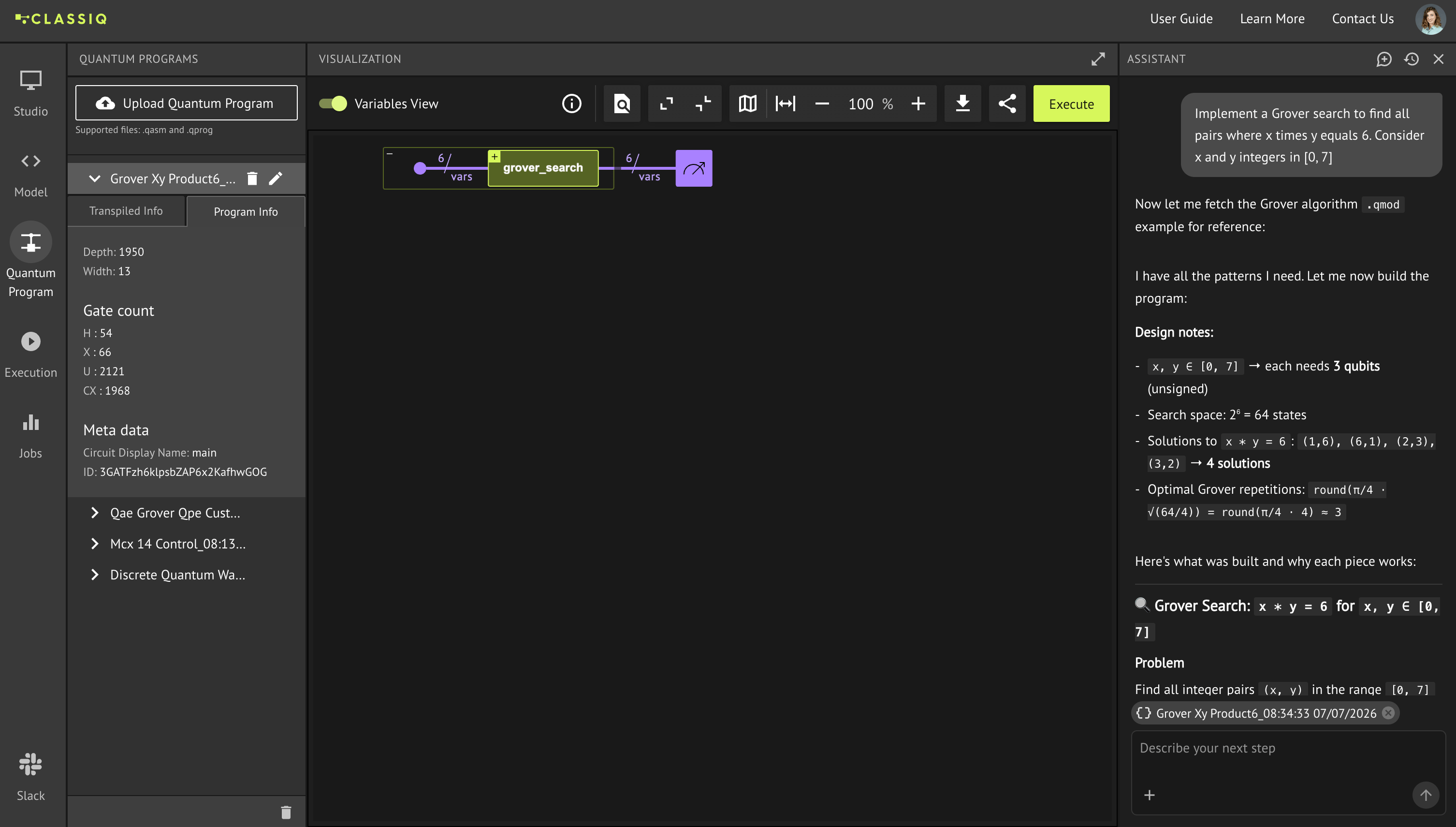 **Example prompts:**
* "Implement a Grover search to find all pairs where x times y equals 6, with x and y as integers in \[0, 7]" — generates a Grover search circuit over a 6-qubit search space.
* "Teleport a qubit using quantum entanglement and classical corrections" — generates a quantum teleportation circuit.
* "Show me a small Monte Carlo example" — generates a compact amplitude-estimation-style circuit.
You can also ask conceptual and follow-up questions instead of only requesting circuits:
* "Explain what entanglement is"
* "Explain what this circuit does"
* "What results should I expect from this program?"
## What You Can Do
* Generate quantum programs from natural language descriptions or from circuit images and diagrams
* Refine the output through follow-up messages in the same conversation
* Ask the assistant to explain what it generated or walk you through the logic
* Ask the assistant to predict what the results of the program should be
* Ask questions about quantum computing concepts and get explanations in context
## Prompts Best Practice
| Do | Don't |
| ---------------------------------------------------------- | ------------------------------------------------------------------------------------------------------------------------------------ |
| Use clear, direct descriptions of what you want to build | Over-specify technical parameters in your initial prompt — it over-constrains the assistant and makes generation more likely to fail |
| Start simple and add detail through follow-up messages | Pack multiple complex requirements into a single prompt — the assistant handles focused requests more reliably |
| Rephrase or simplify if the first attempt isn't right | Assume a failed prompt means the use case is not supported — try a simpler version first |
| Ask the assistant to explain the output or predict results | Expect the assistant to configure backends, run circuits, or interpret execution output — those are handled on the Execution page |
## Limitations
* **Not all prompts will succeed.** Problems requiring parameterized circuits, complex Hamiltonian simulation, or niche library functions may produce incomplete or incorrect output.
* **Generated programs are not guaranteed to be correct.** Always review the output before executing.
* **Execution is a separate step.** The assistant generates and synthesizes quantum programs but does not run them. Click **Execute** and run the program on the Execution page.
* **Model configuration is done in the Classiq Platform.** Setting optimization parameters, backend constraints, and preferences is handled directly in the platform, not through the assistant.
**Example prompts:**
* "Implement a Grover search to find all pairs where x times y equals 6, with x and y as integers in \[0, 7]" — generates a Grover search circuit over a 6-qubit search space.
* "Teleport a qubit using quantum entanglement and classical corrections" — generates a quantum teleportation circuit.
* "Show me a small Monte Carlo example" — generates a compact amplitude-estimation-style circuit.
You can also ask conceptual and follow-up questions instead of only requesting circuits:
* "Explain what entanglement is"
* "Explain what this circuit does"
* "What results should I expect from this program?"
## What You Can Do
* Generate quantum programs from natural language descriptions or from circuit images and diagrams
* Refine the output through follow-up messages in the same conversation
* Ask the assistant to explain what it generated or walk you through the logic
* Ask the assistant to predict what the results of the program should be
* Ask questions about quantum computing concepts and get explanations in context
## Prompts Best Practice
| Do | Don't |
| ---------------------------------------------------------- | ------------------------------------------------------------------------------------------------------------------------------------ |
| Use clear, direct descriptions of what you want to build | Over-specify technical parameters in your initial prompt — it over-constrains the assistant and makes generation more likely to fail |
| Start simple and add detail through follow-up messages | Pack multiple complex requirements into a single prompt — the assistant handles focused requests more reliably |
| Rephrase or simplify if the first attempt isn't right | Assume a failed prompt means the use case is not supported — try a simpler version first |
| Ask the assistant to explain the output or predict results | Expect the assistant to configure backends, run circuits, or interpret execution output — those are handled on the Execution page |
## Limitations
* **Not all prompts will succeed.** Problems requiring parameterized circuits, complex Hamiltonian simulation, or niche library functions may produce incomplete or incorrect output.
* **Generated programs are not guaranteed to be correct.** Always review the output before executing.
* **Execution is a separate step.** The assistant generates and synthesizes quantum programs but does not run them. Click **Execute** and run the program on the Execution page.
* **Model configuration is done in the Classiq Platform.** Setting optimization parameters, backend constraints, and preferences is handled directly in the platform, not through the assistant.